

A remote employer may send you a laptop, allow an approved personal device, or reimburse an approved purchase. A home office stipend can be a separate benefit. Before you accept, ask what computer you will use, when it will be ready, and what you would have to pay before your first day. If the laptop is late, get a written plan from the employer’s onboarding or IT team.
Separate the laptop from the stipend
Ask for hardware and home office benefits on separate lines. GitLab’s expense policy, for example, describes a home office stipend alongside a supplied laptop. Its laptop policy also documents separate approval procedures for self-purchase in regions where normal delivery is unavailable. Remote’s onboarding help describes manager confirmation for employees purchasing equipment for reimbursement through its platform. Confirm the terms your own employer offers for your role, employment arrangement, and location.
If the employer says “bring your own device,” ask IT for the allowed operating systems and hardware, required management software, and what access or removal of work data would mean for your personal files. Check who pays for repair or replacement. Get approval for the exact device before depending on it for onboarding.
Make a day-one equipment plan
- Device: Record which equipment is required at the start, who supplies it, and whether it is shipped, collected, or approved for you to buy. Record ownership and who handles returns.
- Delivery: Confirm the approved shipping address, expected arrival, and a contact you can reach if tracking slips. Confirm where you are allowed to work separately using the remote job location guide.
- Access: Write down when IT setup or training starts, in which time zone, and the approved fallback if the laptop or login is late. Ask which onboarding sessions you can join safely from another device.
- Cash: Separate required purchases from optional upgrades. Record the eligible items, spending cap, approval route, documentation, and reimbursement date if the employer supplies one. If it cannot confirm a date, plan around the full amount you would have to pay up front.
Work through a late-delivery example
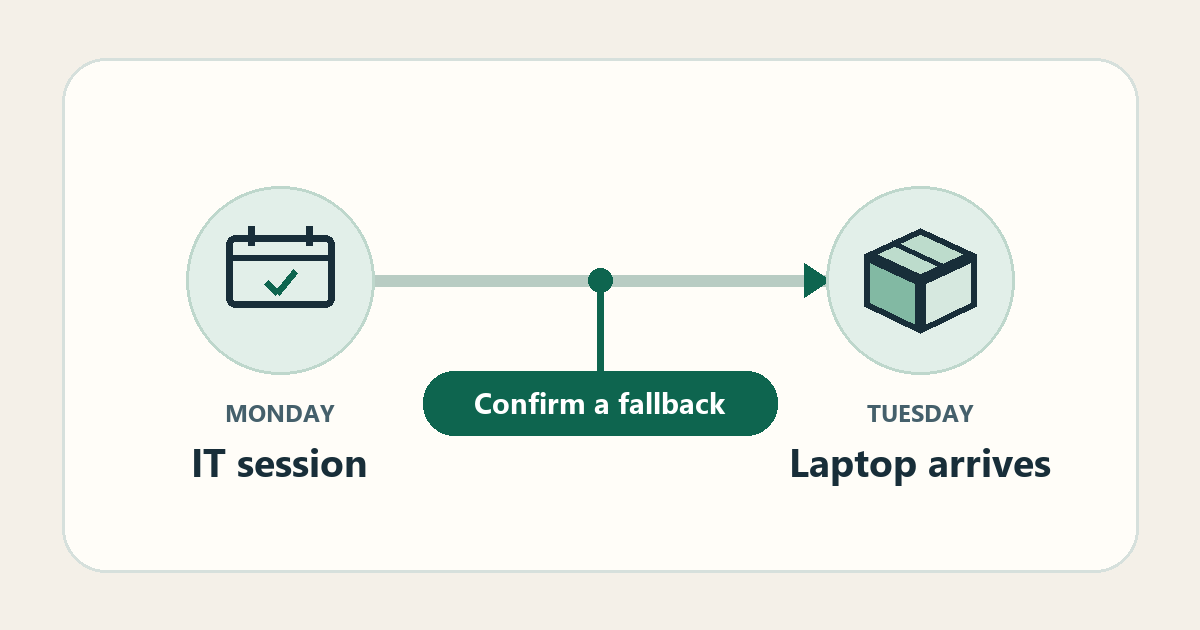
Say your first IT session is Monday at 10 a.m. Eastern, which is 9 a.m. Central, and your employer’s laptop is due Tuesday. You have a personal laptop and a $300 reimbursement allowance. Ask IT whether Monday’s session can run on an approved device, whether they can send a loaner, or whether they can move your setup to Tuesday. If there is no approved plan yet, mark Monday’s access as unresolved.
Suppose IT approves a required $220 monitor and a $130 headset and you submit both under that $300 cap. You would initially pay $350 and have $50 left uncovered if the full $300 is reimbursed. If IT confirms the headset can wait, the initial outlay drops to $220. Record both the initial payment and the eventual unreimbursed amount. The numbers and schedule are illustrative.
Verify the sender before spending
The Federal Trade Commission’s warning about equipment scams describes fraudulent offers that direct recruits to pay a supposed supplier or deposit a check and forward part of the money. Verify the job, recruiter, and equipment instructions through contact details you find independently on the employer’s official site. If the instructions involve a check, sending money onward, or a vendor you cannot verify, stop before moving funds and use the job scam verification checklist.
Send the verified onboarding contact a concrete question: “Can you confirm which laptop and accessories you provide, what the allowance covers, and how I should join the first IT session if the laptop arrives late?” Save the reply with the offer and revise your equipment plan from that answer.
Choose your next step
Keep your momentum with practical tools and verified remote-work opportunities.
Related guides for your next step
A fresh, topic-aware mix from the WorkinVirtual library. Suggestions rotate regularly.

Discuss this guide
Ask a useful question, share relevant experience, or add a practical correction. Helpful contributions publish immediately after automated safety checks.
Start a thoughtful discussion
Be the first member to add a question or practical insight about this topic.
Join the discussion
Sign in with your verified WorkinVirtual account to contribute. Automated safety checks keep posting quick and protect the community.
Sign in to contribute