

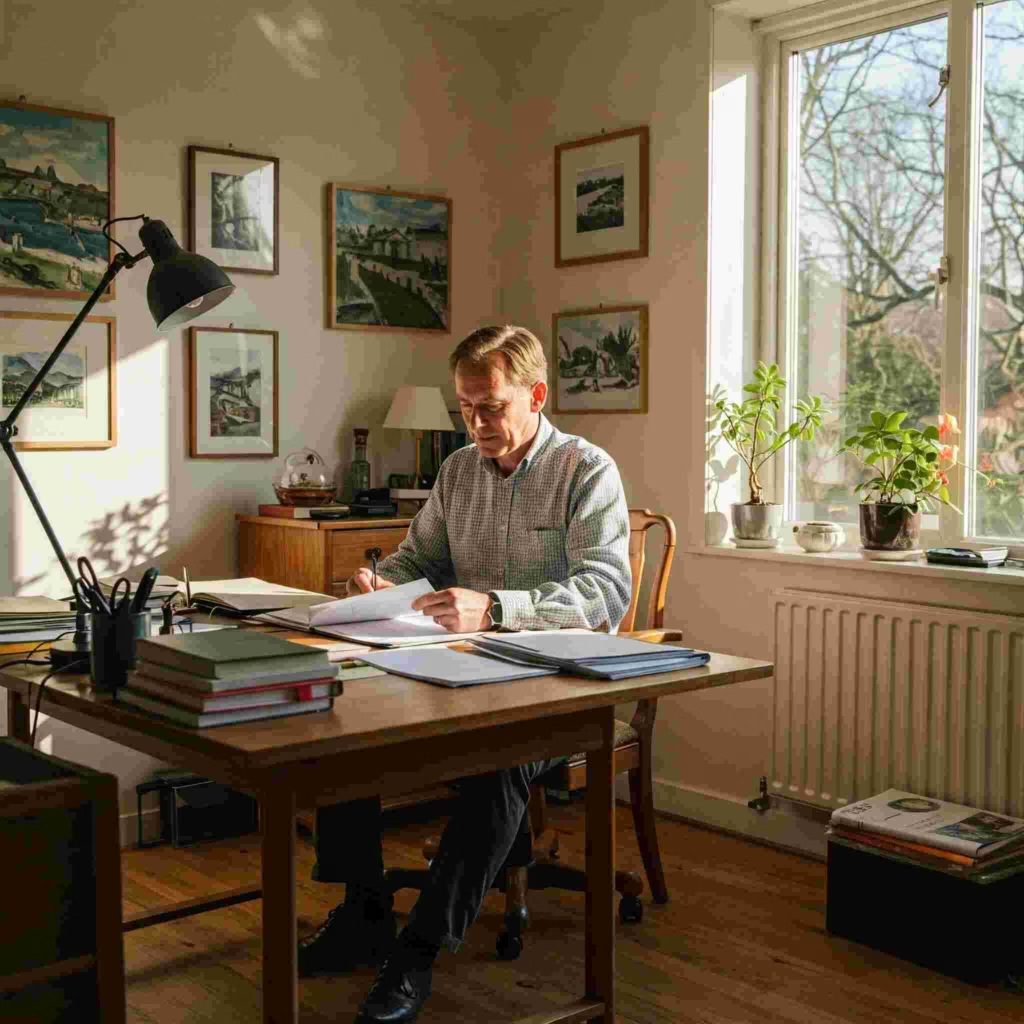
A dedicated home workspace is a consistent, intentionally arranged place and routine for work; it does not require a separate room. Put the screen and input devices in comfortable positions, reduce glare and trip hazards, keep frequently used items within easy reach, and create a clear start-and-stop ritual. Adjust the setup to your body and tasks, vary posture, take breaks, and seek professional advice for persistent pain.
Dedicated means repeatable, not expensive
A compact desk, a table packed away after work or one end of a shared room can all function as a dedicated workplace. The useful feature is repeatability: equipment has a safe position, work materials have a home, other people understand the boundary and the worker can close the day.
Begin with the task. A developer using multiple screens, a customer-support worker on calls and a designer drawing on a tablet have different requirements. Avoid generic product shopping until the setup and problem are clear.
Fifteen-minute workspace audit
Check each item and mark fix now, test, or request support:
- feet are supported and the chair does not create pressure behind the legs;
- keyboard and pointing device allow relaxed shoulders and wrists;
- the main screen is in front, readable and free from strong glare;
- often-used items do not require repeated twisting or long reaches;
- cables, heaters, drinks and overloaded sockets do not create hazards;
- calls can be heard without excessive volume;
- lighting supports the task;
- confidential conversations and screens have appropriate privacy;
- a change of posture and short movement are possible;
- work can be put away or visually closed.
OSHA notes that computer-workstation concerns are often ergonomic and provides an eTool rather than one universal posture. Use employer assessment procedures where available.
Application steps: set up by layers
First stabilize the chair and work surface. Next place the primary screen and input devices. Then adjust light, sound and temperature. Finally add storage and visual details. This order prevents a stylish layout from locking in an uncomfortable position.
Laptop-only work often pulls the screen low or the keyboard high. For long sessions, an external keyboard or display can let each sit in a more suitable position. The exact solution depends on the person, and a temporary setup should not be presented as clinical advice.
Boundaries that make the space work
Use a two-minute opening routine: place the equipment, review the first task, silence irrelevant alerts and tell household members when interruption is possible. Use a closing routine: capture unfinished work, sign out, clear confidential material, put tools away and change the lighting or location.
For shared homes, make availability visible with agreed signals rather than expecting silence all day. Schedule calls when the space permits and use headphones safely. A boundary should protect concentration without transferring an unreasonable burden to family or housemates.
Seven-day experiment
For one week, record discomfort, distraction, setup time and shutdown time on a 0–2 scale. Change one variable every two days—for example screen height, call location or notification rules. Keep the adjustment only if it improves the measured problem.
This engagement exercise is more useful than buying several products at once because it shows which change matters. Persistent pain, numbness, headaches or vision problems deserve qualified assessment rather than endless self-adjustment.
Employer and accessibility considerations
Workers should follow the employer’s health, safety, security and equipment policies. Managers should provide a clear route for workstation assessment and reasonable adjustments and should not assume every employee has a spare room. A camera-on rule can expose living circumstances and is not a workspace solution.
Accessible setups may need assistive software, alternative input devices, captions, controlled lighting or flexible breaks. Ask the individual what removes the barrier and review the adjustment after circumstances change.
Stale-claim cleanup
Remove one-size-fits-all measurements, medical claims, affiliate-heavy furniture lists and claims that standing all day is healthier. Delete staged “perfect office” language, unreviewed product prices and advice that conflicts with employer electrical or data rules.
Frequently asked questions
Do I need a separate room?
No. A consistent zone plus setup and closing routines can create a functional boundary.
Is a dining table acceptable?
It can be a temporary or shared solution, but assess posture, screen position, privacy and setup duration.
How often should I move?
Avoid remaining fixed for long periods. Vary tasks and posture according to your needs and workplace guidance.
Who should assess persistent discomfort?
Use the employer’s ergonomic or occupational-health route or an appropriately qualified professional.
Choose your next step
Keep your momentum with practical tools and verified remote-work opportunities.
Related guides for your next step
A fresh, topic-aware mix from the WorkinVirtual library. Suggestions rotate regularly.





Discuss this guide
Ask a useful question, share relevant experience, or add a practical correction. Helpful contributions publish immediately after automated safety checks.
Start a thoughtful discussion
Be the first member to add a question or practical insight about this topic.
Join the discussion
Sign in with your verified WorkinVirtual account to contribute. Automated safety checks keep posting quick and protect the community.
Sign in to contribute