

If you miss a clock-in or clock-out while working remotely, write down when you actually started or stopped, including the date and time zone. Use your employer’s timesheet correction process, then check that the corrected entry appears. Your schedule can help you locate the shift, but write down the time you actually worked.
Save the actual time and time zone
Record whether the missing entry is a start, end, or break punch. If you remember the time only approximately, say so. An approved work record or a supervisor who witnessed the start or end can help confirm it. Keep customer names, screenshots of private work, and account details out of the correction request unless your employer specifically instructs you to provide evidence through a secure channel.
The U.S. Department of Labor’s telework guidance discusses using a reasonable reporting procedure to account for work away from the office. Ask your timekeeper how to report a missed punch or work outside the scheduled hours through your team’s process.
Report the missing punch through the approved route
Use the route your employer designates. In Microsoft Teams Shifts, workers can view and edit or confirm time entries on Teams mobile. ADP’s timekeeping documentation also shows a missed-punch workflow. Your permissions and the person who approves corrections depend on your setup. If the timecard is locked, contact your manager or timekeeper with the same information and ask which process to use.
Check the two dates if the shift crosses midnight
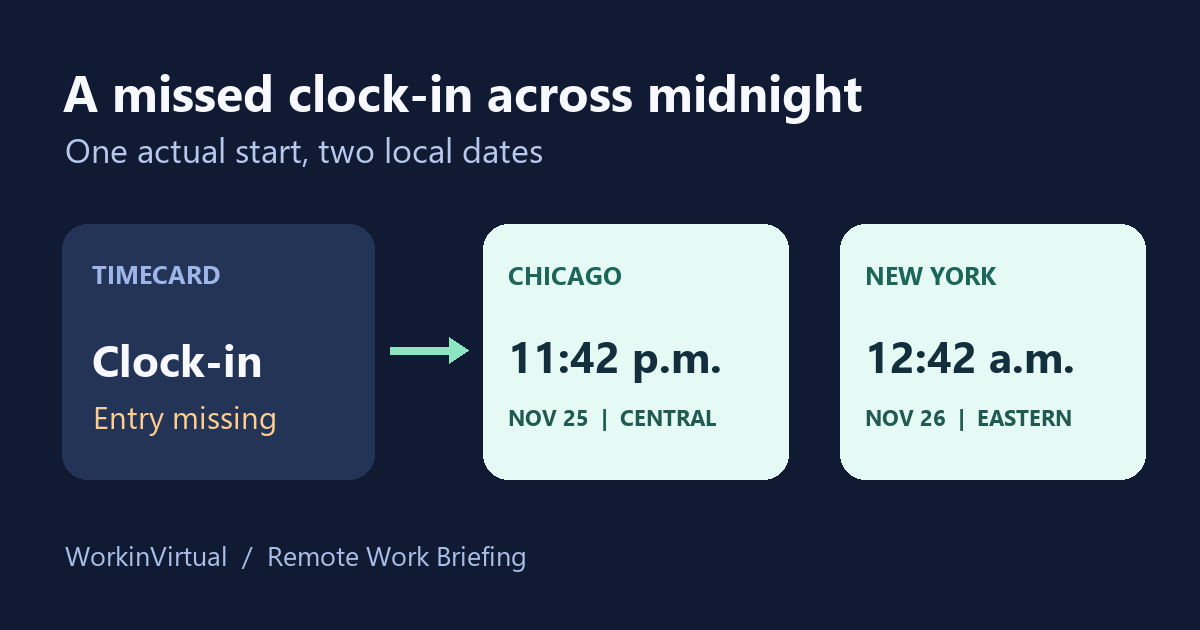
Suppose you work in Chicago and your remote support team’s timecard is set to New York time. You were scheduled for 11:30 p.m. Central on November 25, 2026. You actually started at 11:42 p.m. Central and the start punch is blank. The actual start falls on the following date in the timecard’s zone.
| Record | Chicago | New York |
|---|---|---|
| Scheduled start | Nov. 25, 11:30 p.m. CT | Nov. 26, 12:30 a.m. ET |
| Actual start to report | Nov. 25, 11:42 p.m. CT | Nov. 26, 12:42 a.m. ET |
Include both local timestamps if the clock display uses a different zone. Ask the timekeeper which date the shift belongs under, since a timecard can group overnight entries under a shift date. If the timecard does not identify its zone, ask before entering a converted time.
My clock-in is missing for the overnight shift. I started at 11:42 p.m. Central on November 25 (12:42 a.m. Eastern on November 26). Which timecard entry should I use, and how can I confirm it was corrected?
Verify the correction on your timesheet
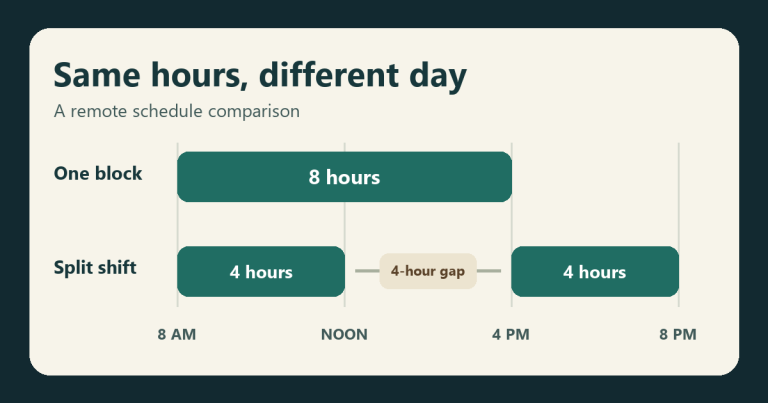
Reopen your timecard after submitting the correction or getting confirmation. Check the adjusted date, time and entry type. If the request still shows as pending, keep its reference and ask your timekeeper when it will be reflected. For help planning the hours in a split schedule, see the remote split-shift guide.
Choose your next step
Keep your momentum with practical tools and verified remote-work opportunities.
Related guides for your next step
A fresh, topic-aware mix from the WorkinVirtual library. Suggestions rotate regularly.


Discuss this guide
Ask a useful question, share relevant experience, or add a practical correction. Helpful contributions publish immediately after automated safety checks.
Start a thoughtful discussion
Be the first member to add a question or practical insight about this topic.
Join the discussion
Sign in with your verified WorkinVirtual account to contribute. Automated safety checks keep posting quick and protect the community.
Sign in to contribute